前面几篇已经把基础控件和尺寸单位铺了一层。接下来按 HarmonyOS 开发者网站里 ArkUI UI 开发的组织方式,把“构建布局”这组内容拆完。
第一篇先讲线性布局。
线性布局解决的是最基础的问题:一组组件按一个方向排下去。 横向排,就是 Row;纵向排,就是 Column。Android 里传统 View 体系对应 LinearLayout,Compose 里也有 Row / Column。
本文通过一个简化的例子做用法展示:如何用 Row / Column 搭一个可复用的个人中心头部卡片,并把主轴、交叉轴、间距、对齐、权重这些概念放进代码里。 不覆盖:层叠布局、弹性换行、相对约束、栅格布局和 Tabs。它们后面单独讲。
先看要搭的 UI
先定一个很常见的场景:个人中心头部。
它由三块组成:
- 左侧头像。
- 中间用户信息:昵称、会员等级、说明文字。
- 右侧一个“编辑”按钮。
从结构看,它其实就是两层线性布局:
Column:整张卡片从上到下
  Row:头像、文字区域、按钮从左到右
    Column:昵称、等级、说明从上到下
这就是线性布局最常见的嵌套方式:外层决定大方向,内层处理局部方向。
ArkUI:用 Row/Column 写线性结构
先看 ArkUI 版本:
@Component
struct ProfileHeaderCard {
  build() {
    Column() {
      Row() {
        Text('K')
          .width(56)
          .height(56)
          .borderRadius(28)
          .backgroundColor('#2563EB')
          .fontSize(24)
          .fontColor(Color.White)
          .fontWeight(FontWeight.Bold)
          .textAlign(TextAlign.Center)

        Column() {
          Text('Kai')
            .fontSize(20)
            .fontWeight(FontWeight.Medium)
            .fontColor('#111827')

          Text('HarmonyOS 学习中')
            .fontSize(13)
            .fontColor('#2563EB')
            .margin({ top: 4 })

          Text('今天继续把 ArkUI 布局拆开看')
            .fontSize(13)
            .fontColor('#6B7280')
            .margin({ top: 6 })
        }
        .layoutWeight(1)
        .margin({ left: 14, right: 12 })
        .alignItems(HorizontalAlign.Start)

        Button('编辑')
          .height(32)
          .padding({ left: 14, right: 14 })
      }
      .width('100%')
      .alignItems(VerticalAlign.Center)

      Row() {
        Text('文章 9')
        Text('关注 128')
        Text('收藏 36')
      }
      .width('100%')
      .justifyContent(FlexAlign.SpaceBetween)
      .margin({ top: 18 })
    }
    .width('100%')
    .padding(16)
    .borderRadius(16)
    .backgroundColor(Color.White)
  }
}
上面的代码实现的效果如下:
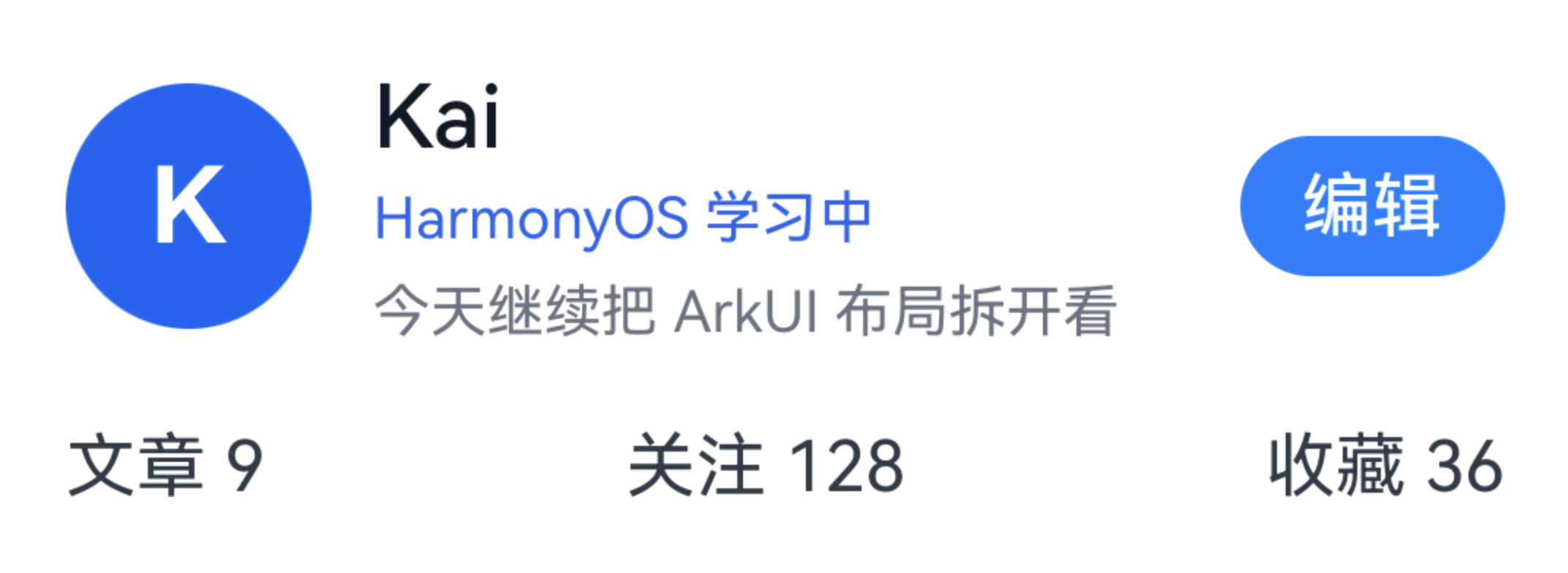
Row 和两个 Column:
- 外层
Column:让“用户信息行”和“统计信息行”上下排列。 - 第一层
Row:让头像、文字区域、按钮左右排列。 - 中间的
Column:让昵称、等级、说明文字上下排列。 - 底部
Row:让三项统计数据横向分布。
刚开始写 ArkUI 布局时,不要急着记一堆属性。先用一个问题判断:这组组件是横着排,还是竖着排?
- 横着排:先放进
Row()。 - 竖着排:先放进
Column()。 - 局部方向变了:在里面再嵌一层
Row()或Column()。
主轴和交叉轴:线性布局的两个方向
Row 和 Column 最容易混的不是写法,而是对齐方向。
线性布局里有两个方向:
- 主轴:组件排列的方向。
- 交叉轴:和主轴垂直的方向。
放到 ArkUI 里:
| 容器 | 主轴 | 交叉轴 | 常见问题 |
|---|---|---|---|
Row |
水平方向 | 垂直方向 | 子组件左右怎么分布、垂直怎么居中 |
Column |
垂直方向 | 水平方向 | 子组件上下怎么分布、水平怎么对齐 |
例如这句:
Row() {
  // avatar / text area / button
}
.alignItems(VerticalAlign.Center)
因为 Row 的交叉轴是垂直方向,所以 .alignItems(VerticalAlign.Center) 表达的是:头像、文字区域、按钮在垂直方向居中。
再看底部统计:
Row() {
  Text('文章 9')
  Text('关注 128')
  Text('收藏 36')
}
.width('100%')
.justifyContent(FlexAlign.SpaceBetween)
这里 Row 的主轴是水平方向,.justifyContent(FlexAlign.SpaceBetween) 表达的是:三段文字在水平方向拉开,中间留出均匀空间。
如果换成 Column,方向就反过来。Column 的主轴是垂直方向,交叉轴是水平方向。很多布局错位,其实就是把主轴和交叉轴想反了。
layoutWeight:把剩余空间交给中间区域
个人中心头部里,中间文字区域最适合使用 layoutWeight(1):
Column() {
  Text('Kai')
  Text('HarmonyOS 学习中')
  Text('今天继续把 ArkUI 布局拆开看')
}
.layoutWeight(1)
.margin({ left: 14, right: 12 })
这一句的含义是:在当前 Row 里,头像和按钮占掉自己的固定尺寸后,剩余横向空间主要交给中间这个 Column。
没有这句时,长文本可能会把右侧按钮挤出去,或者整个头部在窄屏上变得不可控。写业务 UI 时,可以先记住这个模式:
Row:左固定 + 中间自适应 + 右固定
中间区域通常加 layoutWeight(1)
Android View 体系里,这个思路对应 LinearLayout 的 layout_weight;Compose 里对应 Modifier.weight(1f)。
Android XML:LinearLayout 速查卡(只看 5 个映射)
如果你从 Android XML 过来,这篇里需要记住的其实就 5 件事——把“同一件布局意图”换一种写法表达出来:
- 横向排:
LinearLayout orientation="horizontal"↔Row() - 纵向排:
LinearLayout orientation="vertical"↔Column() - 垂直居中:
android:gravity="center_vertical"↔Row().alignItems(VerticalAlign.Center) - 中间自适应:
android:layout_width="0dp" + layout_weight="1"↔layoutWeight(1) - 间距:
padding/margin↔.padding(...) / .margin(...)
下面是一个“足够短、能看出结构”的 XML 版本(只保留关键属性):
<LinearLayout
    android:layout_width="match_parent"
    android:layout_height="wrap_content"
    android:orientation="vertical"
    android:padding="16dp">

  <LinearLayout
      android:layout_width="match_parent"
      android:layout_height="wrap_content"
      android:orientation="horizontal"
      android:gravity="center_vertical">

    <TextView
        android:layout_width="56dp"
        android:layout_height="56dp"
        android:gravity="center"
        android:text="K" />

    <LinearLayout
        android:layout_width="0dp"
        android:layout_height="wrap_content"
        android:layout_weight="1"
        android:layout_marginStart="14dp"
        android:layout_marginEnd="12dp"
        android:orientation="vertical" />

    <Button
        android:layout_width="wrap_content"
        android:layout_height="32dp"
        android:text="编辑" />
  </LinearLayout>
</LinearLayout>
差异主要在“表达方式”:Android XML 把关系写进属性;ArkUI/Compose 把容器与属性链写进同一段声明式代码里。因此学习 ArkUI 时,比起死记属性,更重要的是先把结构(Row/Column 嵌套)画对。
Compose:Row/Column 的名字更像,但属性链不同
Compose 里的写法更接近 ArkUI:
@Composable
fun ProfileHeaderCard() {
  Column(
    modifier = Modifier
      .fillMaxWidth()
      .background(Color.White, RoundedCornerShape(16.dp))
      .padding(16.dp)
  ) {
    Row(
      modifier = Modifier.fillMaxWidth(),
      verticalAlignment = Alignment.CenterVertically
    ) {
      Text(
        text = "K",
        modifier = Modifier
          .size(56.dp)
          .background(Color(0xFF2563EB), CircleShape),
        color = Color.White,
        fontSize = 24.sp,
        fontWeight = FontWeight.Bold,
        textAlign = TextAlign.Center
      )

      Column(
        modifier = Modifier
          .weight(1f)
          .padding(start = 14.dp, end = 12.dp)
      ) {
        Text("Kai", fontSize = 20.sp, fontWeight = FontWeight.Medium)
        Text("HarmonyOS 学习中", fontSize = 13.sp, color = Color(0xFF2563EB))
        Text("今天继续把 ArkUI 布局拆开看", fontSize = 13.sp, color = Color(0xFF6B7280))
      }

      Button(onClick = { }) {
        Text("编辑")
      }
    }

    Row(
      modifier = Modifier
        .fillMaxWidth()
        .padding(top = 18.dp),
      horizontalArrangement = Arrangement.SpaceBetween
    ) {
      Text("文章 9")
      Text("关注 128")
      Text("收藏 36")
    }
  }
}
Compose 和 ArkUI 在学习上很容易互相参照:
- Compose 的
Row/Column与 ArkUI 的Row/Column名字一致。 - Compose 用
Modifier链描述尺寸、背景、间距。 - ArkUI 用组件后的属性链描述尺寸、背景、间距。
- Compose 的
verticalAlignment/horizontalArrangement与 ArkUI 的alignItems/justifyContent都是在描述主轴和交叉轴上的分布。
写文章时把 Compose 拉进来,不是为了让读者先学 Compose,而是因为它和 ArkUI 都属于声明式 UI。对有 Android 背景的读者来说,这比只看 XML 更容易理解 ArkUI 的属性链。
线性布局的三条判断规则
写 Row / Column 时,可以按这三步走:
- 先判断方向:横向用
Row,纵向用Column。 - 再判断对齐:主轴看
justifyContent,交叉轴看alignItems。 - 最后判断剩余空间:谁需要吃掉剩余空间,谁加
layoutWeight(1)。
对应到个人中心头部:
| 问题 | ArkUI 写法 | Android XML 参照 | Compose 参照 |
|---|---|---|---|
| 头像、文字、按钮横向排列 | Row() |
LinearLayout orientation="horizontal" |
Row |
| 昵称、等级、说明纵向排列 | Column() |
LinearLayout orientation="vertical" |
Column |
| 三个组件垂直居中 | alignItems(VerticalAlign.Center) |
gravity="center_vertical" |
verticalAlignment = Alignment.CenterVertically |
| 底部统计左右拉开 | justifyContent(FlexAlign.SpaceBetween) |
可用权重或约束处理 | horizontalArrangement = Arrangement.SpaceBetween |
| 中间文字吃剩余宽度 | layoutWeight(1) |
layout_width="0dp" + layout_weight="1" |
Modifier.weight(1f) |
常见错误:把线性布局当万能布局
线性布局适合一维排列:一行,或者一列。
如果你发现自己写出了很多层 Row / Column,而且每一层都在靠 margin 微调位置,就要停一下:
- 组件只是前后排列:继续用
Row/Column。 - 组件需要覆盖在一起:后面用
Stack。 - 组件需要自动换行:后面用
Flex。 - 组件之间存在复杂相对约束:后面用
RelativeContainer。 - 页面要按列数和断点适配:后面用栅格布局。
- 页面要在多个栏目之间切换:后面用
Tabs。
线性布局是第一块积木,不是所有布局的答案。
小结
Row / Column 是 ArkUI 布局的起点。它们不难,关键是不要只把它们记成“横向/纵向容器”,而要顺手把这几个问题一起想清楚:
- 当前容器的主轴是哪一条?
- 子组件在主轴上怎么分布?
- 子组件在交叉轴上怎么对齐?
- 谁是固定尺寸,谁吃剩余空间?
- 嵌套层数是不是已经说明该换布局模型了?
下一篇继续沿着 HarmonyOS 开发者网站的“构建布局”顺序,讲层叠布局:Stack。它解决的是线性布局处理不了的覆盖关系,比如头像角标、卡片浮层、图片上的按钮。
参考素材
// Kai@CodeHubble // 观测坐标:Android-HarmonyOS/2026-05-18